

Process overview
A customer can grant your application access to their data by an approval process similar to the OAuth access flow. This involves the following steps:1
Get authorization Url
call create customer link to receive an
authorizationUrl link.2
User login in browser / webview
Send the user to this link in a browser window or webview. The user will be asked to log in using the credentials they used when creating their energy supply contract.
3
Authorization
After login, the user will be asked to grant your application access to their personal and contract related data stored on the Rabot platform.
4
Redirect to application
When the user approves, the web view will be redirected to the webpage defined by the
successUrl parameter in Step 1, and you will be able to access the users data via the API.Example flow
Get authorization Url
Call create customer link, providingsuccessUrl and failureUrl. Note that these can include additional state information, such in this example the xyz34567 path parameter that could be a customer identifier, session id or security token in your application.
customer linking request
linking response
User login in browser / webview
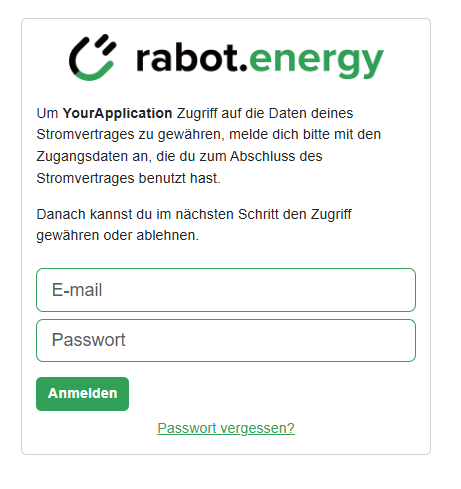
Using this Url in a browser, the user will first see a login screen:
Authorization
When the user successfully logs in, the Rabot platform will present an approval request screen:
Redirect to application
When the user approves, the browser is redirected to yoursuccessUrl, and the customer number is appended to the Url as a query parameter:
https://your.application.com/customer-link-success/xyz34567?customerNumber=46491184
In case the user rejects the approval request, the browser is redirected to the failureUrl:
https://your.application.com/customer-link-error/xyz34567?error_description=The+authorization+was+denied+by+the+end+user.&error_name=access_denied
Note that if the login fails due to wrong or missing credentials, the login screen does not redirect to the
failureUrl, but instead shows an error message to the users, allowing them to try again.Access user data
With thecustomerNumber returned in the redirect to successUrl above, you can then query customer and contract information, e.g. by calling the list contracts endpoint:
Managing user reference Ids
The API offers different ways for you to match customer data in the RABOT platform with the data in your own platform.- As shown in the example above, when the user is redirected after granting your application access to their data, the
successUrllink is extended with a query parametercustomerNothat contains the unique customer number of this customer in the RABOT platform. You can store this number together with the customer information in your platform, and then use it to query the customer’s data via API using thecustomerNoas path variable as shown above. - You can also add an
externalIdparameter to the create customer link call. This information is then stored with the customer data in the RABOT platform, and you can use it as a filter to the list customers API call to access the customer’s data.
Handling different partner accounts
In the RABOT platform, customers and contracts are always “owned” by a particular partner account. All B2C business under the Rabot Energy brand is part of the rabot-charge account, whereas business created as part of a whitelabel partnership is managed in separate partner accounts. By default, you can only link customers that belong to one partner account, defined by your partnership type:- Sales and Integration partners: By default, you can only link customers from the rabot-charge account
- Whitelabel partners: By default, you can only link customers from your own account
authAs parameter in the create customer link call.
For example, as a whitelabel partner, you can link customers with a Rabot Energy contract:
customer linking request
authorizationUrl link will now show Rabot Energy branding:
Users will get an error message when trying to log in via a linking Url that does not match their owning account. For example, a Rabot Energy customer will not be able to log in with their credentials in the login screen created for a whitelabel partner account, and vice versa.